(Old Screen) Search, Edit, Create, or Assign Users to Tenants
User Management has two modes: "Old Screen" and "New Screen".
You can switch between them using the toggle next to the page heading.
For new screen operations, see (New Screen) Search, Edit, Create, or Assign Users to Tenants.
Search Users
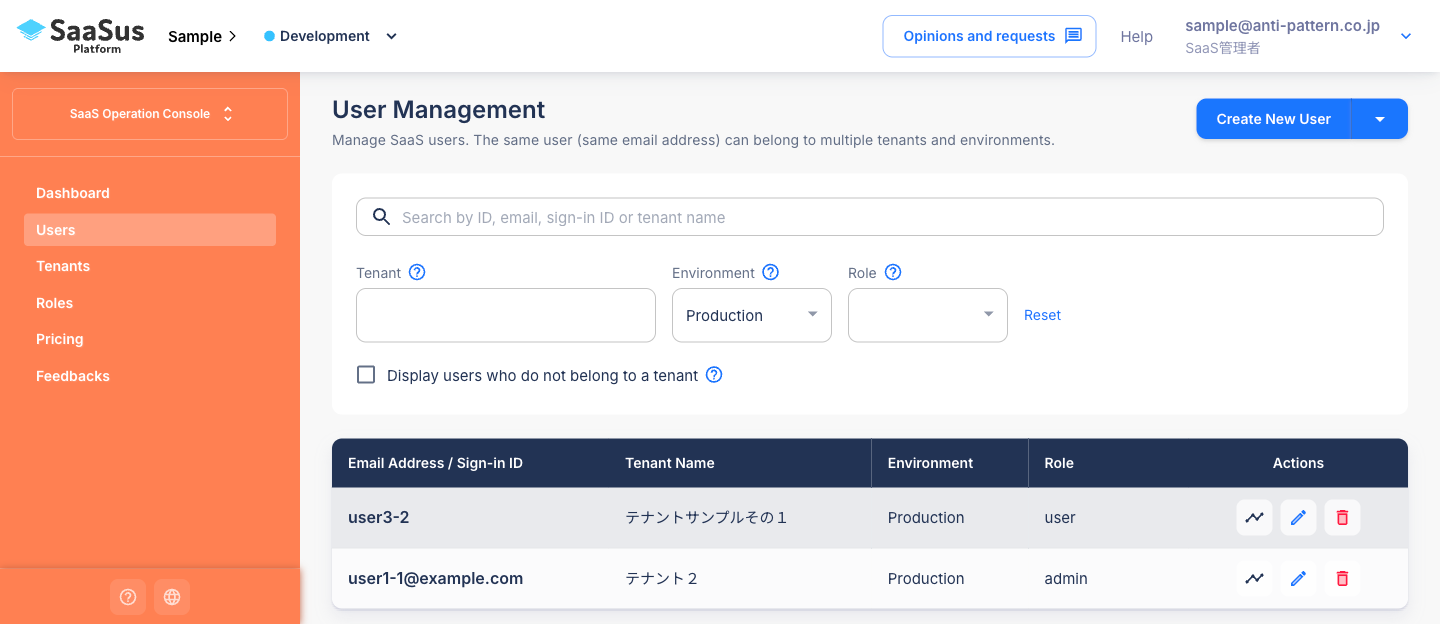
You can filter and search users using the following criteria:
Available search filters:
- ID, Email Address, Sign-in ID, or Tenant Name: Text input
- Tenant: Text box with autocomplete
- Environment: Select box
- Role: Select box
- Display users who do not belong to a tenant: Checkbox
Create a New User
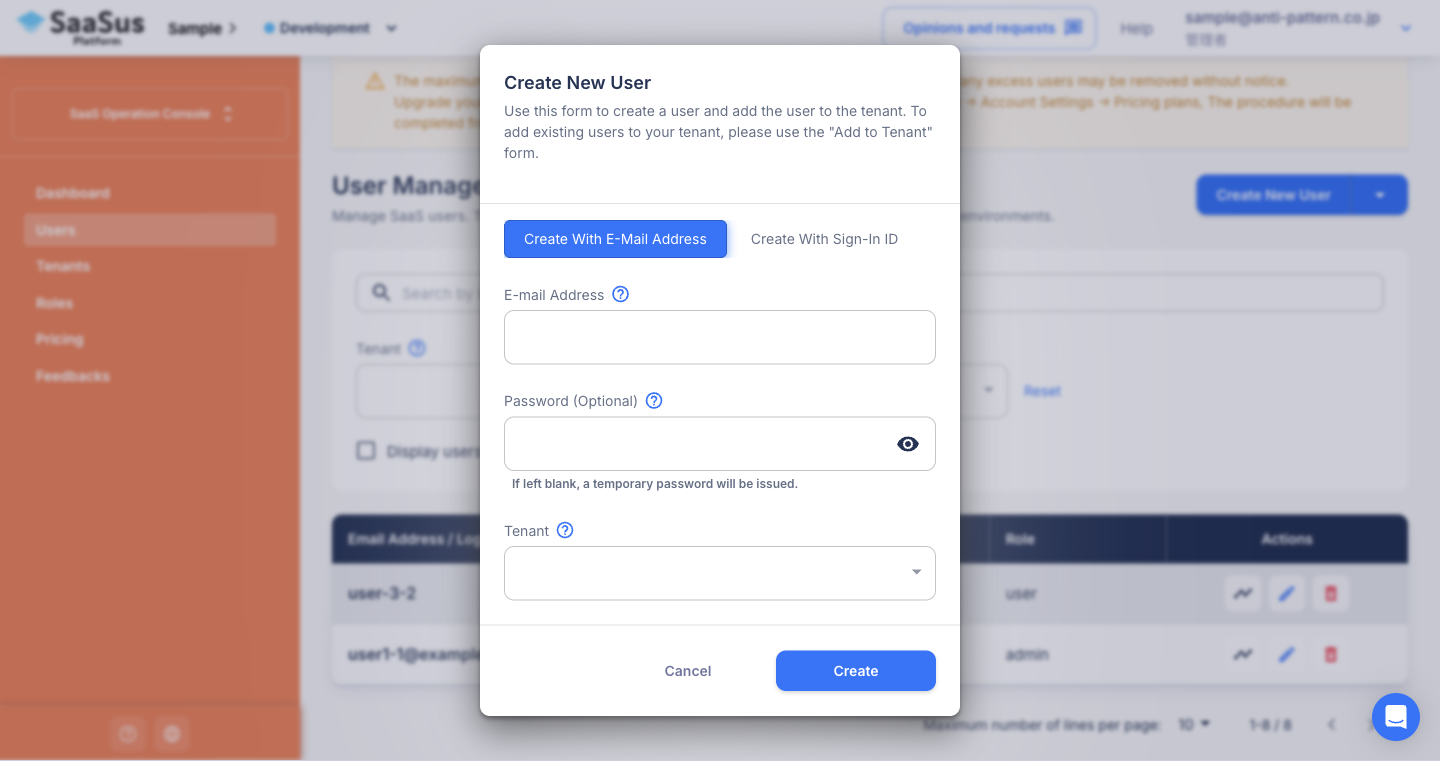
Click the "Add User" button at the top right of the screen to open the user registration window.
At the top of the user registration window, you can select one of the following tabs:
- Create With E-Mail Address: Create a user with email address authentication
- Create With Sign-In ID: Create a user with sign-in ID authentication
The input fields change depending on the selected tab, and only one of "Email Address" or "Sign-in ID" is shown.
To allow users created with "Create With Sign-In ID" to log in, you need to turn ON Advanced Settings > Basics > Sign-in ID and enable "Add Sign-in ID label". If this is OFF, sign-in ID users can be created, but they cannot log in with sign-in ID on the login screen.
Sign-in ID authentication is not tied to an email address, so there is no email address to send notifications to. As a result, passwords are handled differently than with email address authentication.
- The administrator must set the initial password and provide it to the user. With sign-in ID authentication, there is no way to notify the user of the password, so the password must be set by the administrator. Either enter a password when creating the user, or note the temporary password that is issued when it is left blank, and convey that value from the administrator to the user directly.
- The user cannot change (reset) their password from "Forgot your password?" on the login screen. There is no destination to send the password reset email to. To reset the password, the administrator resets it from [Edit User] and provides the new password to the user.
This section explains the input fields.
Input fields:
| Field | Description |
|---|---|
| Creation Method | Select the Create With E-Mail Address or Create With Sign-In ID tab |
| E-mail Address | Displayed when Create With E-Mail Address is selected. Used for user login |
| Sign-in ID | Displayed when Create With Sign-In ID is selected (allowed: alphanumeric characters, hyphen (-), underscore (_); max 50 characters) |
| Password (Optional) | Enter a password for login. If left blank, a temporary password is issued When Create With E-Mail Address is selected, if the password is left blank, a temporary password will be sent to that email address |
| Tenant | Select the tenant to associate the user with |
| User Attributes | Fill in predefined user attributes (e.g., Username, Department, Role, etc.) |
Add Existing User to Tenant
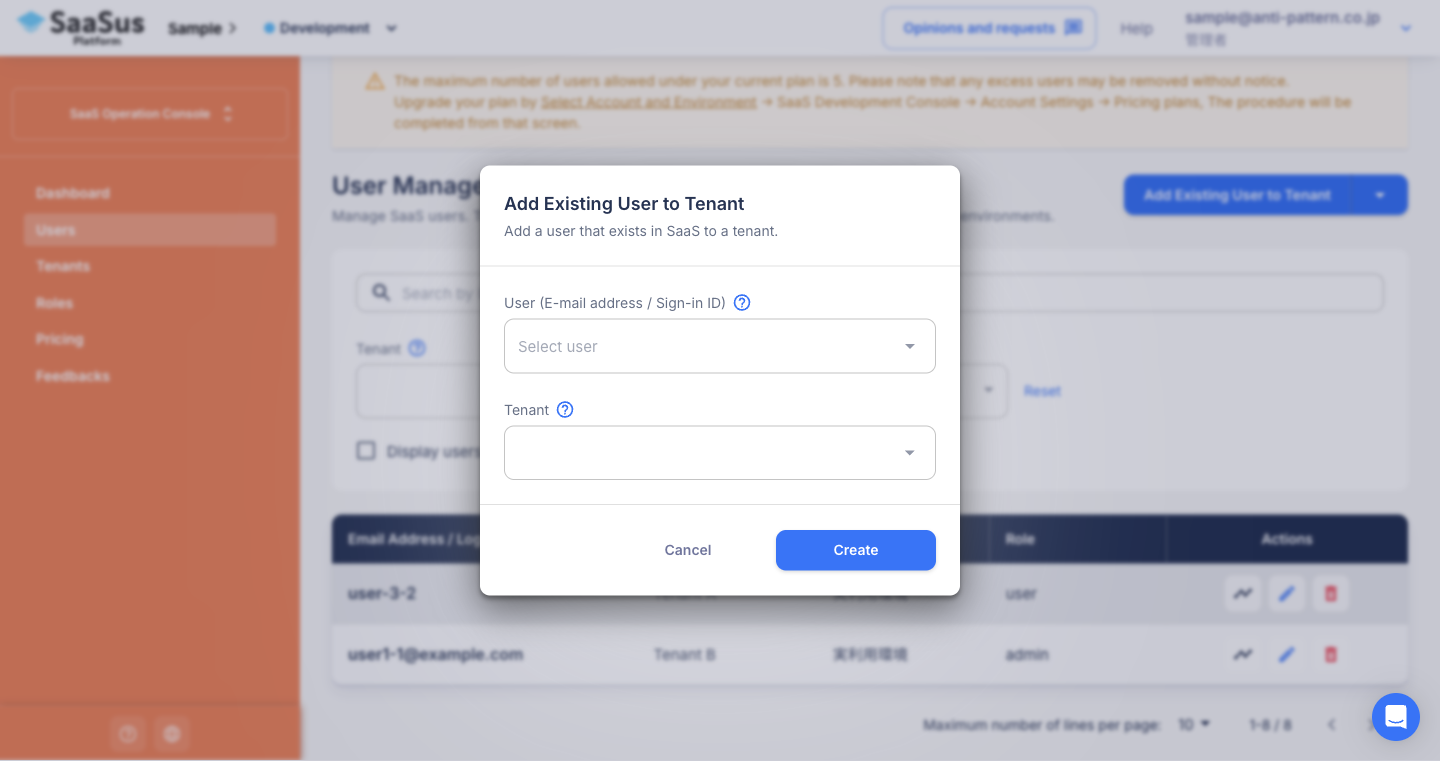
Select "Add Existing User to Tenant" from the select box on the "Add User" button to open the tenant assignment window.
This allows you to associate an already registered user with another tenant.
Input fields:
| Field | Description |
|---|---|
| E-mail Address / Sign-in ID | Email address or sign-in ID of the existing user to be added |
| Tenant | Select the tenant to assign the user to |
| User Attributes | Fill in predefined user attributes (e.g., Username, etc.) |
Edit or Delete a User
Click the "Edit" or "Delete" icon from the user list to perform the operation.
Edit
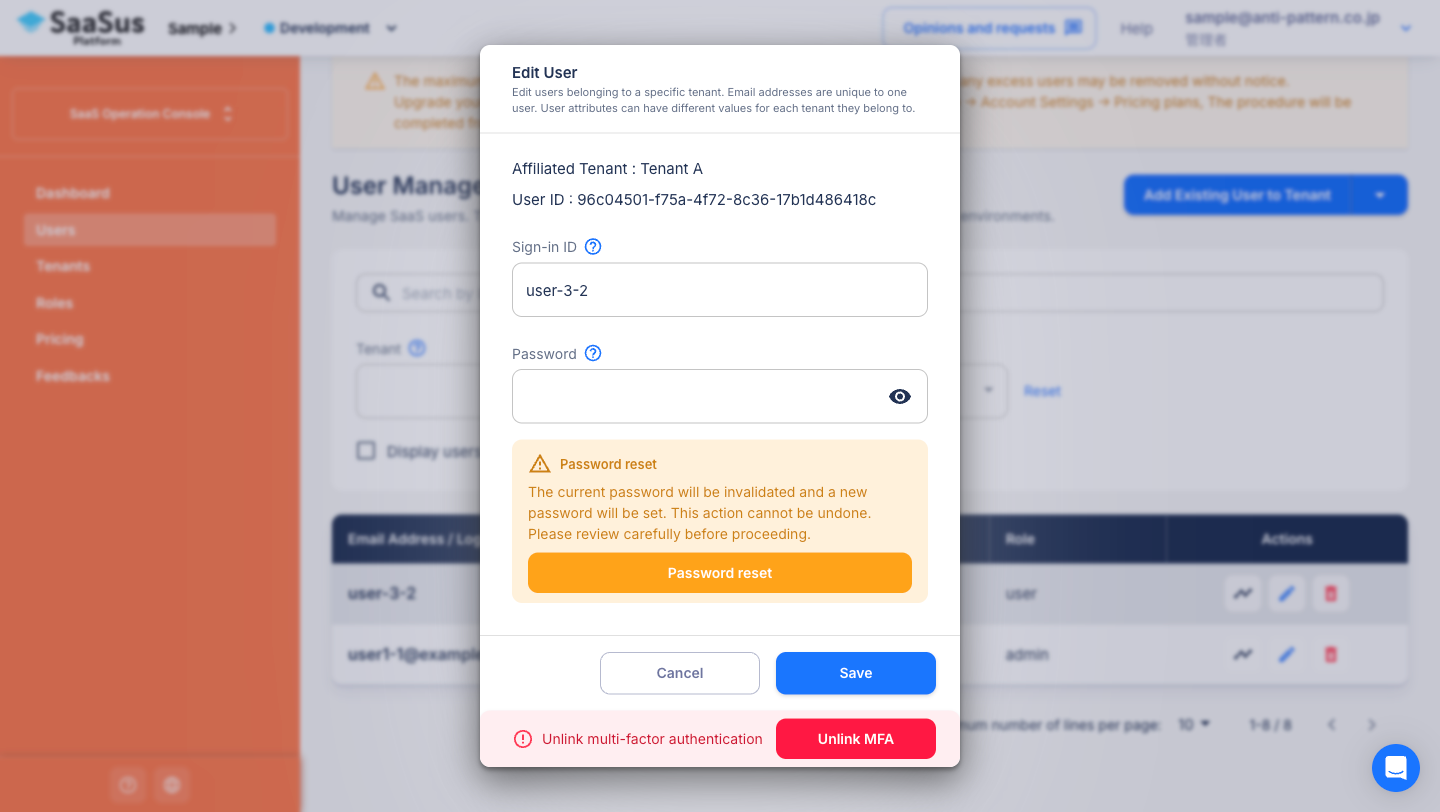
Clicking the edit icon opens a window where user information can be modified.
Editable fields:
- E-mail Address (when email address authentication is used)
- Sign-in ID (when sign-in ID authentication is used)
- Password (re-entry)
- User Attributes (e.g., Username, Department, etc.)
Available actions:
- Password reset (invalidates the current password and sets a new one)
- Unlink MFA (the button is shown at the bottom only for users who have MFA configured)
Delete
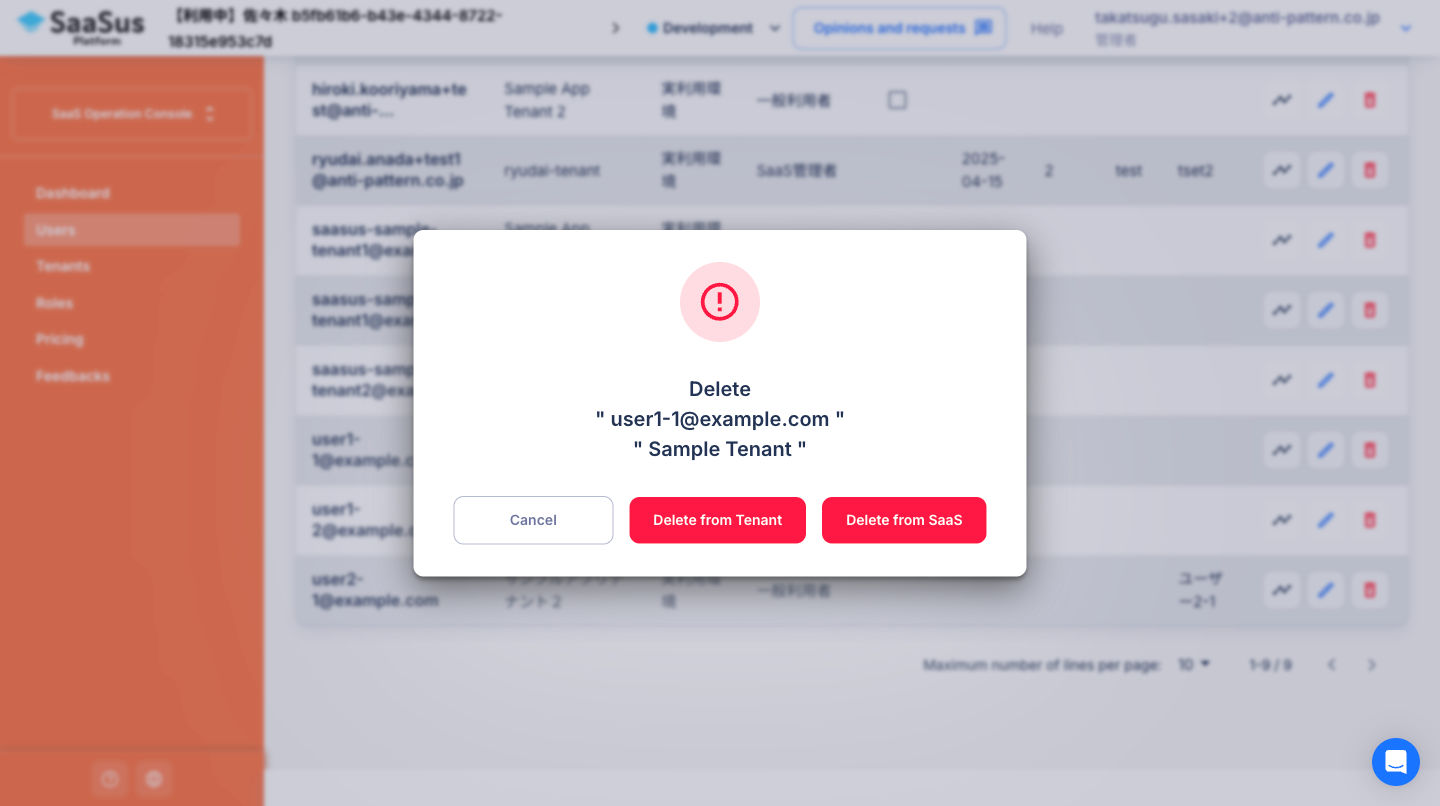
Clicking the delete icon opens a confirmation window with two deletion options.
Deletion options:
-
Delete from Tenant
The user will be removed only from the tenant associated with the selected row. Other tenant associations remain unaffected. -
Delete from SaaSus
The user will be completely removed from the SaaSus Platform and disassociated from all tenants.
Notes:
- If "Delete from SaaSus" is selected, the user is removed from all associated tenants.
Related Links
To view user activity history,
see User Activity History Log.