Setting the Google Tag Manager Container ID
1. Confirming the Container ID
From the Google Tag Manager Homepage
Please check the "Container ID" column in the list of containers, which will display as "GTM-XXXXXXXX".

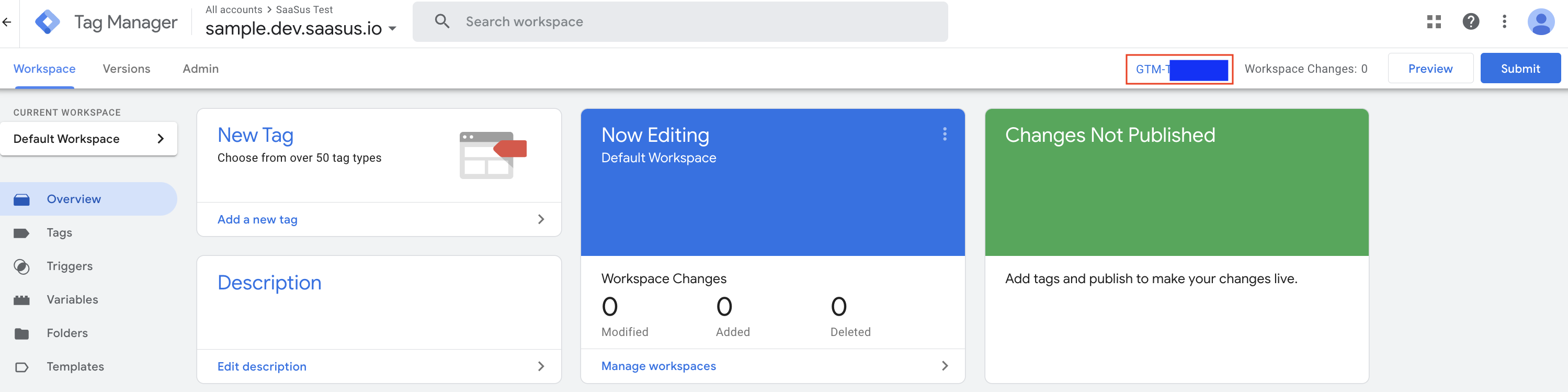
From the Container Page
Check the "GTM-XXXXXXXX" displayed at the top right of the screen.
2. Setting the Container ID
-
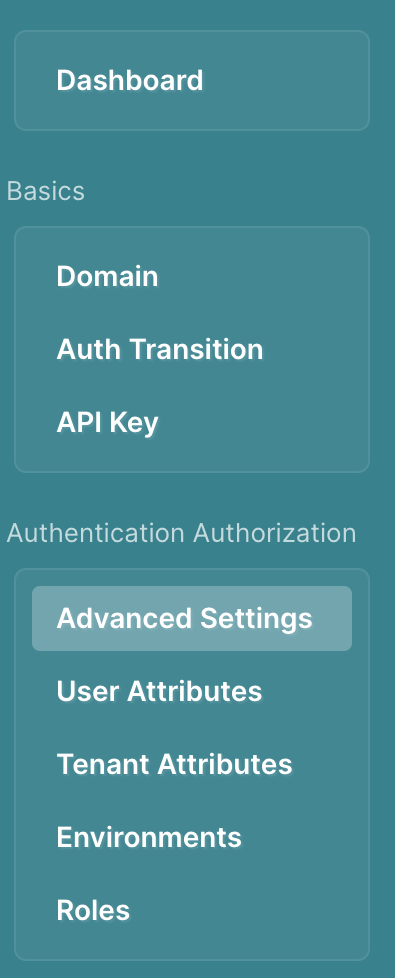
Open the "Authentication Details Settings" in the SaaS development Console.
-
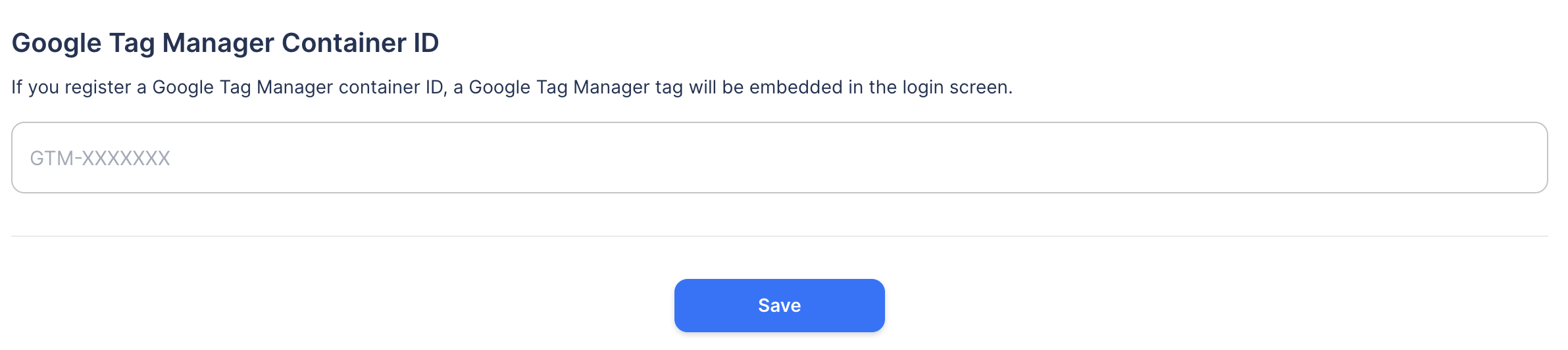
In "Basic Settings" on the Authentication Details Settings screen, set the "Google Tag Manager Container ID" to your container ID and click Save.
This completes the process of embedding the Google Tag Manager tags into the login screen.